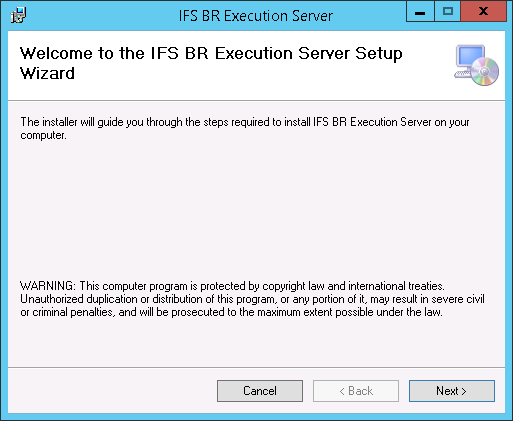
Use this page to learn how to install the IFS Business Reporter Execution Server (also called BRES in this document).
It is required to install IFS Business Reporter prior to installing the IFS Business Reporter Execution Server.
For more information how to install IFS Business Reporter, please refer to the following link >>
The IFS Business Reporter Execution Server can only be installed using an installation package, i.e. BRExecutionServerSetup.msi.
Some possibilities how to get hold of the msi:
e.g. \\<server>folder>Build\Home\win32server\IFS BR Execution Server\Install to a local server folder and run it from there or run it directly from the build home folder
Note: In case of bug corrections, the standard way is to include component BACLI in an ordinary general or delivery build, thus making BRES available via the IFS Build Home
The installation package will install:
Figure 1-1: IFS Business Reporter Execution Server Installation
Click Next to continue.

Figure 1-2: IFS Business Reporter Execution Server Installation
Supply a folder where you want IFS Business Reporter Execution Server to be installed.
Default suggested folder is often good enough.
It is necessary to have Administrator privileges to perform the installation.
Click Next to continue
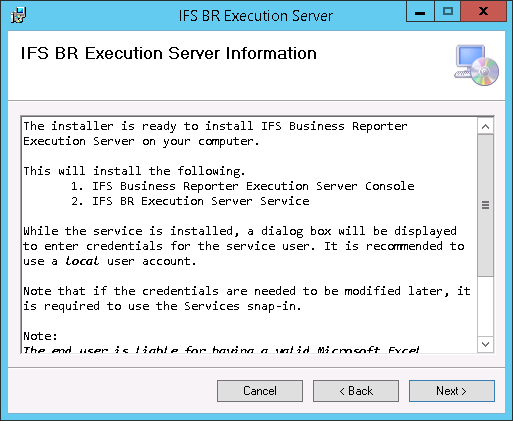
Figure 1-3: IFS Business Reporter Execution Server Installation - Part 1
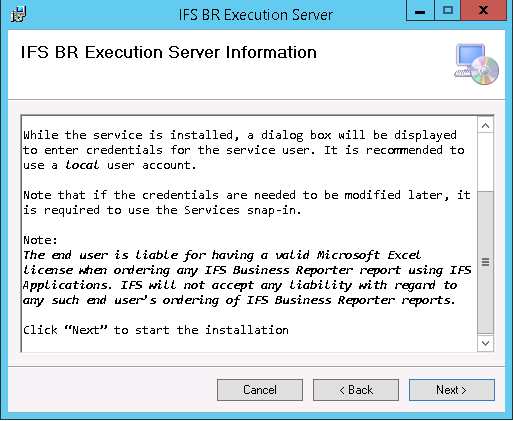
Figure 1-4: IFS Business Reporter Execution Server Installation - Part 2
This step provides some important information regarding credentials for the user running the IFS Business Reporter Execution Server service as well as license limitations.
Note: Please observe the note about licenses. It is not ok according to Microsoft to use an application as BRES, running on a separate server, to produce Excel reports to one or many IFS Application end users without these users having a valid Microsoft Excel license. This still applies for the case when BRES produces PDF reports.
Click Next to continue

Figure 1-5: IFS Business Reporter Execution Server Installation
This step is used to supply a valid login for the BRES Service. The service login information is mandatory.
Note: It is
recommended to use an AD user account and also to add the user to the Administrators
group is also recommended to avoid problems. To be able to administrate the BRES
server from within IFS EE using an AD user is a must; if a local user is specified
remote administration will not be possible.
The Username must always be entered as a fully
qualified name, meaning that the domain must be present. If a local user account
is used, the Username can be entered as
.\<username> where the dot means the
local machine.
It
is important to provide service user credentials to make sure that the IFS
Business Reporter Execution Server can render and process reports without
generating errors. One example is reports that are configured to be saved as a
PDF. This means that after rendering the report it must be converted to a PDF
report. The user account to be used by the service must have the privilege to
perform the PDF conversion else the report execution will fail and the IFS
Business Reporter Execution Server
will report an error.
For more information please refer to BRES
Windows Service User
Note: The Set Service Logon dialog might not appear centered on the wizard. If this dialog does not appear centered and the wizard seems to be stuck, please try to locate the logon dialog, normally popping up in the upper left corner of the screen.
Click Next to continue

Figure 1-6: IFS Business Reporter Execution Server Installation
The installation ends by clicking Close on the last of the installation wizard.
At the end of the installation, a shortcut is added to IFS BR Execution Server Console among programs. Dependig on operation system, programs are presented differently. One example is given below with the Execution Server installed on a Windows Server 2012R2:
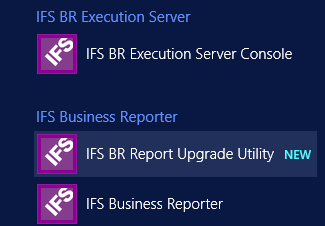
Figure 1-7: IFS BR Execution Server among Apps on a Windows Server 2012R2
Note: It is important to make sure that the
Windows Service representing IFS Business Reporter Execution Server
has access to the installed IFS Business Reporter client as well as necessary privileges to run the Microsoft XPS Document Writer
in order to create PDF files.
The service logon is thus important.
It is
always possible to locate the IFS BR Execution Server service in
Services or Computer
Services in Windows and modify the
service logon.
For more information please refer to BRES
Windows Service User
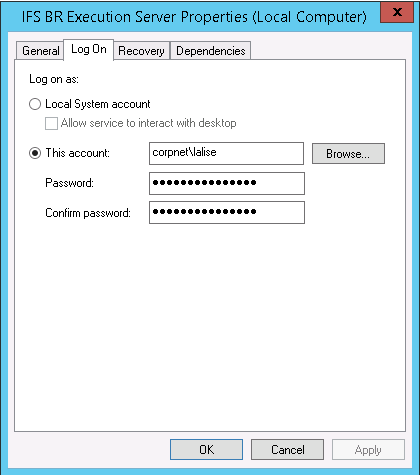
Figure 2: Defining the account for the system service representing IFS Business Reporter Execution Server
Some useful information and check points related to the Windows Service running the BRES server will be discussed in this section.
Logging on at least once ensures that profiles etc in Windows are set up properly for the user.
Depending on how the user account is set up, it might be necessary to change the password as first action.
This might be required in order to do initial configurations for the user.
Open Excel, add some random information and then save the file as a PDF file.
For some readers it is required to have a printer installed and it will in such a case not be possible to create the PDF file via Excel.
Make sure that all requirements are fulfilled.